IPTV Buffering Fix: A Practical Checklist That Actually Works
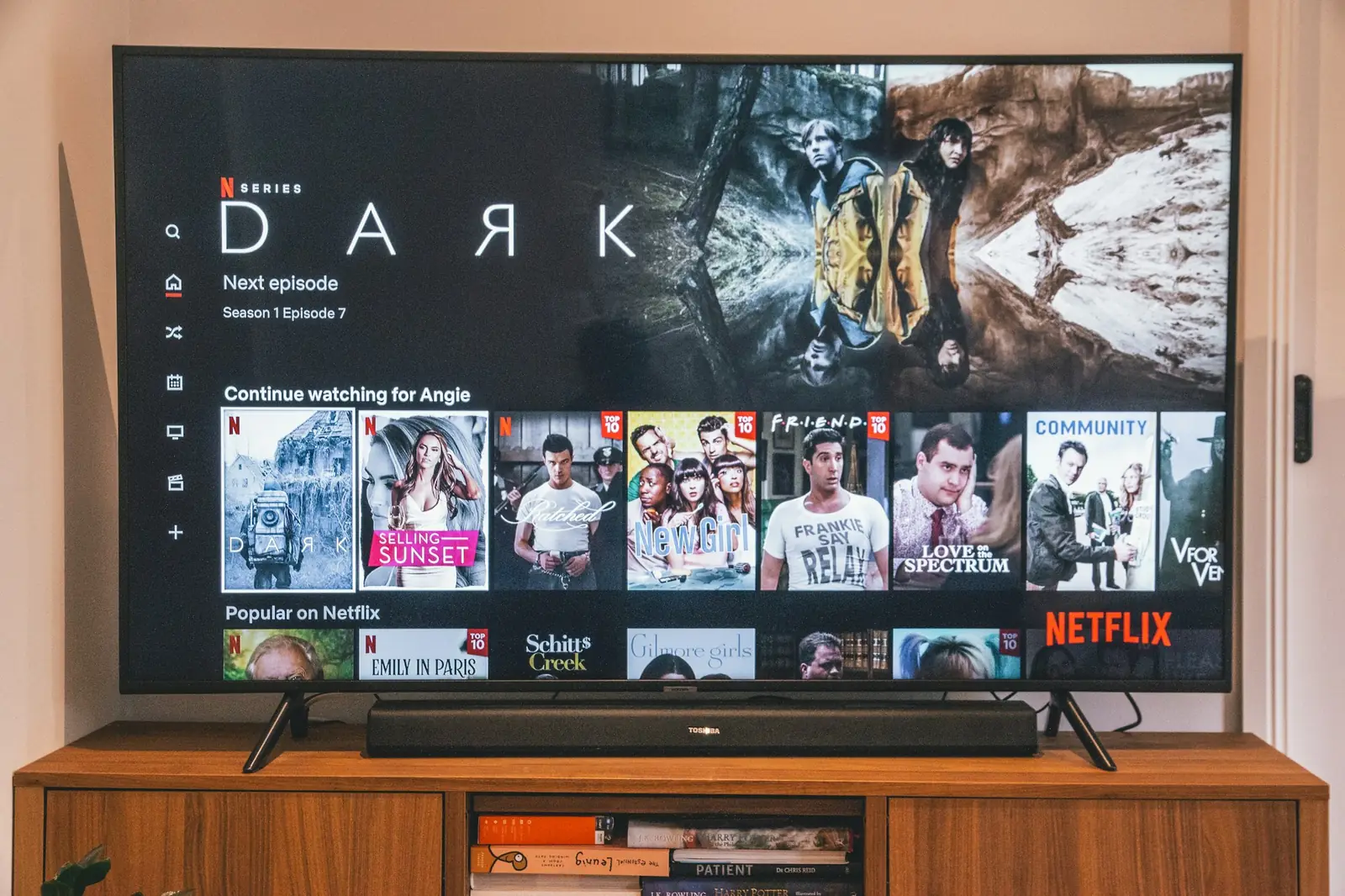
Most IPTV buffering comes from the home network, not the service, and the fastest fixes are usually a wired connection, a router and device restart, and a larger buffer in your player app. Work through the checklist below in order, testing after each step, and you will find the cause in most cases within 20 minutes. If a single channel buffers while others play fine, the problem is likely that stream, so try a backup version or contact support.
First: is it one channel or everything?
Before changing settings, spend two minutes narrowing it down. This saves a lot of guesswork.
- One channel buffers, others are fine: the issue is probably that specific stream. Try another version of the channel (many have HD and FHD variants) and report it to support.
- Everything buffers on one device, but plays fine on another: the device, its app or its Wi-Fi connection is the likely cause.
- Everything buffers on every device: look at your router and internet connection first.
- Buffering only at certain times: evening congestion, either on your network or your internet provider's, is the usual suspect.
The IPTV buffering fix checklist
1. Restart the device and the router
It sounds too simple, but streaming sticks and Smart TVs run for weeks without a proper restart, and memory fills up. Fully power off the device (unplug it for 30 seconds, not just standby). Do the same with your router and modem. On a Firestick, a restart from Settings, My Fire TV, Restart also clears a lot of background clutter.
2. Use a wired connection where you can
Wi-Fi is the most common cause of IPTV buffering. Walls, microwaves, neighbours' networks and distance all add latency and dropped packets. If the TV is near the router, plug in an Ethernet cable. If it is not, a powerline adapter or a mesh Wi-Fi node near the TV is a good middle ground. Fire TV devices without a network port can use an inexpensive Ethernet adapter.
3. If you must use Wi-Fi, use it well
- Connect to the 5 GHz band rather than 2.4 GHz when the device is within a room or two of the router.
- Raise the router off the floor and keep it out of cabinets.
- Change the Wi-Fi channel in the router settings if your area is crowded with networks.
- Check how many devices are busy at the same time. A games console downloading an update can drain bandwidth from everything else.
4. Check your speed on the device itself
Run a speed test on, or right next to, the streaming device during the time you normally watch. Compare the result with what the stream needs: about 10 Mbps for HD, 15 to 20 Mbps for Full HD and 25 Mbps or more for 4K. Look at ping and jitter too. Our guide to internet speed for IPTV explains how to read those numbers.
5. Change your DNS
Your internet provider's default DNS servers are sometimes slow or overloaded, which can make channels slow to start or fail intermittently. Switching to a well-known public DNS service on your router or device is free and takes a minute. It will not increase your raw speed, but it often makes channel loading snappier and more reliable.
6. Increase the buffer in your player app
Most good IPTV players let you choose how many seconds of video to load ahead. A larger buffer means a slightly longer wait when you change channels, but much better tolerance for brief network dips. Look for settings named buffer size, network cache or stream buffer. In apps that offer a choice of video player (for example a native player and an alternative engine), switching between them can also fix stuttering on specific devices. Our roundup of the best IPTV apps notes which apps expose these options.
7. Clear the app cache or reinstall
On Android-based devices, including Fire TV and Android TV, go to the app settings and clear the cache. If problems persist, reinstall the app and log in again. This also refreshes the channel list and EPG, which can fix channels that seem to load forever.
8. Lower the quality on weaker connections
If a 4K or FHD channel stutters, try the HD version of the same channel. You lose some sharpness but gain stability, which most people prefer during a live match.
9. Try a different server or stream source
Providers often route traffic through more than one server. If buffering seems tied to the service rather than your network, contact support and ask whether an alternative server is available for your line. We handle these requests 24/7 by WhatsApp and email through our contact page.
10. A note on VPNs
A VPN can work in both directions. Some internet providers slow down or interfere with streaming traffic at busy times, and in those cases a fast VPN server near you can actually reduce buffering. On the other hand, a slow or distant VPN server adds latency and can cause buffering on its own. If you use a VPN, test with it on and off, and pick a nearby server with good speeds. If you do not use one and everything else checks out, it is worth a short experiment.
Device-specific tips
- Firestick and Fire TV: older and Lite models have limited memory. Close background apps, turn off data monitoring and app usage collection in privacy settings, and consider Ethernet. See the Firestick setup guide.
- Smart TVs: built-in Wi-Fi radios on TVs are often weaker than on dedicated streaming devices. Keep the TV firmware and app updated. See the Smart TV setup guide.
- Android boxes: cheap boxes can overheat, which causes stutter after an hour or so. Keep them ventilated and off the top of other electronics.
- MAG boxes: a portal reload or a box reboot from the settings menu clears most playback issues.
When to contact support
If you have worked through steps 1 to 8 and buffering continues on a wired connection with good test results, the issue may be on the service side. Contact support with the details that help us most: the channel name, the time it happened, your device and app, and whether you are on Wi-Fi or Ethernet. That information lets us check the stream and your route to the server rather than asking you to repeat steps you already tried.
If you are still evaluating providers, run this checklist during the 24-hour free trial. It is the best way to know how a service will behave on your own network.
Frequently asked questions
Evening is peak time for home internet use, so both your household network and your internet provider carry more traffic. A wired connection and a larger player buffer help absorb that congestion.
Only if speed is actually the bottleneck. Many buffering problems come from Wi-Fi interference, high jitter or an overloaded device, which a faster plan will not fix.
It is optional. A nearby, fast VPN server can help if your internet provider slows down streaming traffic, but a slow or distant server can make buffering worse, so test both ways.
Start with a medium setting and move to large if you still see interruptions. Bigger buffers add a short delay when changing channels but make playback more tolerant of brief network dips.